ようへい
ラベル Android 開発 の投稿を表示しています。 すべての投稿を表示

2014年2月26日水曜日

自分なりの Android 開発環境まとめ (2014/02/26版)

久しぶりにAndroidアプリの開発をしようと思い、イチから開発環境の構築をしたのでメモ。
なお、以下の情報はIntel製CPUを積んだPCでの環境構築を前提としている。

環境構築準備

以下のファイルを準備する。
Eclipse 最新版
Pleiades - Eclipse プラグイン日本語化プラグイン | MergeDoc Project
Android SDK Tools
Android SDK | Android Developers
DOWNLOAD FOR OTHER PLATFORMSをクリックし、SDK Tools OnlyRecommendedとなっているインストーラーをダウンロード
Java Development Kit (JDK) 6
Java Archive Downloads - Java SE 6
からJDK 6 をダウンロード。
ダウンロードにはOracleへの登録が必要。
JDK 1.7 は公式にはサポートされていないので、公式でサポートされているJDK 1.6 を使用する。
ダウンロード後、それぞれインストールしておく。

公式IDEの Android Studio はまだ成熟してる感じじゃないので今回はパス。

Android SDK Tools での環境設定

開発対象とするバージョンのSDK PlatformIntel x86 Atom System ImageGoogle APIsに加え、ExtrasAndroid Support LibraryGoogle USB DriverIntel x86 Emulator Acceletor (HAXM)をインストールする。
Intel x86 Emulator Acceletor (HAXM) のみマニュアルでのインストールが必要なので注意。
Android SDK Toolsインストールディレクトリ配下の、extras\intel\Hardware_Accelerated_Execution_ManagerIntelHaxm.exeがあるので、インストールする。
その後、Android Virtual Device Manager(AVD)を起動し、エミュレートするデバイスを作る。
Intel製CPUで快適にエミュレートされるよう、デバイス作成時、以下を設定する。
CPU/ABI
Intel Atom (x86)を選択
Emulation Options
Use Host GPUをチェック

Eclipse での環境設定

JStyle アンインストール
便利な反面、coreがアップデートした時にマニュアルアップデートが必要だったり面倒なのでアンインストールしておく。
これは好みで。
plugins ディレクトリーの以下 jar ファイルを削除。
  • jp.sourceforge.mergedoc.jstyle_x.x.x.x.jar
  • org.eclipse.swt.win32.win32.x86_xxx.xxx.jar
  • org.eclipse.swt.win32.win32.x86_source_xxx.xxx.jar
その後、オリジナルの jar をリネーム。
  • org.eclipse.swt.win32.win32.x86_64_xxx.xxx.jar.backup
    -> org.eclipse.swt.win32.win32.x86_64_xxx.xxx.jar
  • org.eclipse.swt.win32.win32.x86_64_source_xxx.xxx.jar.backup
    -> org.eclipse.swt.win32.win32.x86_64_source_xxx.xxx.jar
一旦Eclipseを-cleanで起動しなおす。
Plugin インストール
ウィンドウ»設定を開き、インストール/更新»使用可能なソフトウェア・サイトで以下を追加する。
ADT
https://dl-ssl.google.com/android/eclipse/
Andrey Loskutov
http://andrei.gmxhome.de/Eclipse/
その後、ヘルプ»新規ソフトウェアのインストールで、以下をインストール。
http://andrei.gmxhome.de/Eclipse/
  • AnyEditTools
https://dl-ssl.google.com/android/eclipse/
  • Android DDMS
  • Android 開発ツール
  • Android 階層ビュアー
  • Android トレースビュー
一旦Eclipseを-cleanで起動しなおす。
設定変更
ウィンドウ»設定を開き、一般»エディター»テキスト・エディター行番号の表示にチェック。
Java»インストール済みのJRE検索を押してJDK 1.6 を検索しチェックしておく。
Java»コンパイラーコンパイラー準拠レベル1.6にしておく。
こんなところです。
構築後に思い出しながら書いているので、忘れてる部分もあるかも。
関連記事

2012年9月26日水曜日

[Eclipse] PhoneGap で Android アプリ開発

面白そうな記事を見つけたので、早速試してみる。
なんでもHTML、JavaScript、CSSでAndroidアプリが作れるそうだ。
Adobeいつのまにこんなフレームワーク作ってたんだ・・・
Eclipse×PhoneGapでAndroidアプリ開発! ~インストールからアプリ実行まで (1/3):CodeZine
http://codezine.jp/article/detail/6687
Apache Cordova API Documentation
http://docs.phonegap.com/en/2.1.0/guide_getting-started_android_index.md.html#Getting Started with Android

PhoneGapの準備

以下のページからPhoneGapをダウンロード。
PhoneGap | Download & Archives
http://www.phonegap.com/download 現時点で最新の 2.1.0 をダウンロードしました。
ダウンロード後、解凍しておきます。

プロジェクトの作成

Androidプロジェクトを新規に作ります。
PhoneGap で Android アプリ開発
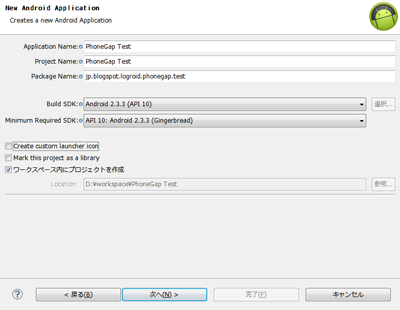
ここでは、2.3.3をターゲットとしてプロジェクトを作りました。
テストプロジェクトなのでCreate custom launcher iconのチェックは外します。
PhoneGap で Android アプリ開発
BlankActivityを作成します。
PhoneGap で Android アプリ開発
後は適当に。

PhoneGapインストール

PhoneGap で Android アプリ開発
プロジェクトのassetsディレクトリ内にwwwフォルダを作成します。
また、libsフォルダが無い場合は新規に作成します。
PhoneGap で Android アプリ開発
PhoneGapのlib/android/cordova-2.1.0.jsassets/wwwディレクトリにコピーします。
lib/android/cordova-2.1.0.jarlibsディレクトリにコピーします。
lib/android/xmlディレクトリをresディレクトリにコピーします。
libs配下に追加したcordova-2.1.0.jarをビルドパスに追加するため、libs/cordova-2.1.0.jarを右クリックし、ビルド・パス->ビルド・パスに追加を行います。

アプリの作成

PhoneGap で Android アプリ開発
index.htmlをwwwディレクトリ配下に作成。
Webサイトと同じように、このファイルがアプリのトップ画面になるようだ。
index.htmlに書くコードは以下。
<!DOCTYPE HTML>
<html>
  <head>
    <title>PhoneGap</title>
    <script type="text/javascript" charset="utf8" src="cordova-2.1.0.js"></script>
  </head>
  <body>
    <h1>Hello PhoneGap</h1>
  </body>
</html>
Activityファイルを開き、以下のように変更します。
package jp.blogspot.logroid.phonegap.test;

import org.apache.cordova.DroidGap;

import android.os.Bundle;

public class MainActivity extends DroidGap {

    @Override
    public void onCreate(Bundle savedInstanceState) {
        super.onCreate(savedInstanceState);
 super.loadUrl("file:///android_asset/www/index.html");
    }

}

メタデータ修正

AndroidManifest.xmlファイルを開き、以下のように変更します。
<manifest xmlns:android="http://schemas.android.com/apk/res/android"
    package="jp.blogspot.logroid.phonegap.test"
    android:versionCode="1"
    android:versionName="1.0" >

    <uses-sdk
        android:minSdkVersion="10"
        android:targetSdkVersion="15" />

    <supports-screens
        android:anyDensity="true"
        android:largeScreens="true"
        android:normalScreens="true"
        android:resizeable="true"
        android:smallScreens="true" />

    <uses-permission android:name="android.permission.ACCESS_COARSE_LOCATION" />
    <uses-permission android:name="android.permission.ACCESS_FINE_LOCATION" />
    <uses-permission android:name="android.permission.ACCESS_LOCATION_EXTRA_COMMANDS" />
    <uses-permission android:name="android.permission.ACCESS_NETWORK_STATE" />
    <uses-permission android:name="android.permission.BROADCAST_STICKY" />
    <uses-permission android:name="android.permission.CAMERA" />
    <uses-permission android:name="android.permission.GET_ACCOUNTS" />
    <uses-permission android:name="android.permission.INTERNET" />
    <uses-permission android:name="android.permission.MODIFY_AUDIO_SETTINGS" />
    <uses-permission android:name="android.permission.READ_CONTACTS" />
    <uses-permission android:name="android.permission.READ_PHONE_STATE" />
    <uses-permission android:name="android.permission.RECEIVE_SMS" />
    <uses-permission android:name="android.permission.RECORD_AUDIO" />
    <uses-permission android:name="android.permission.VIBRATE" />
    <uses-permission android:name="android.permission.WRITE_CONTACTS" />
    <uses-permission android:name="android.permission.WRITE_EXTERNAL_STORAGE" />

    <application
        android:icon="@drawable/ic_launcher"
        android:label="@string/app_name"
        android:theme="@style/AppTheme" >
        <activity
            android:name=".MainActivity"
            configChanges="orientation|keyboardHidden"
            android:label="@string/title_activity_main" >
            <intent-filter>
                <action android:name="android.intent.action.MAIN" />

                <category android:name="android.intent.category.LAUNCHER" />
            </intent-filter>
        </activity>
    </application>

</manifest>

実行

PhoneGap で Android アプリ開発
なかなか簡単に実行までできました。
本格的にJavaScript、CSS使ったアプリも作ってみたいと思います。
関連記事

2012年7月3日火曜日

[Pleiades] Eclipse 4.2 Juno Windows 32bit 日本語化手順

ここでは、プラグインの管理面から、Pleiadesに同梱されているreadme.txtの方法ではなく、dropinsフォルダにインストールする方法を紹介します。

準備

ダウンロード
以下のファイルをダウンロードする
Eclipse 4.2
Eclipse Downloads
http://www.eclipse.org/downloads/
Eclipse Classic 4.2からダウンロード
Pleiades
Eclipse 日本語化 | MergeDoc Project
http://mergedoc.sourceforge.jp/index.html#pleiades.html
Pleiades 本体ダウンロードからダウンロード
解凍
ダウンロード後、ドライブの直下(C:\等)に上記のファイルを解凍する。
解凍時の注意点は、Pleiades配布ページ等を参照。
Eclipseの配置
Program Files等に、eclipseフォルダを移動する。
この辺は好みで。
パスにマルチバイト文字を含んだりすると悪影響があるかもしれません。

日本語化

Pleiadesインストール
eclipseフォルダ配下のdropinsフォルダ配下に、MergeDoc/eclipseというパスを作成し、pleiadesフォルダ配下のfeaturespluginsをコピーします。
ディレクトリ構成はこんな感じ
eclipse
└─dropins
    └─MergeDoc
        └─eclipse
            ├─features
            │  └─jp.sourceforge.mergedoc.pleiades
            │      └─META-INF
            └─plugins
                └─jp.sourceforge.mergedoc.pleiades
                    ├─conf
                    │  ├─additions
                    │  └─props
                    ├─lib
                    │  ├─apache
                    │  └─javassist
                    └─META-INF
eclipse.exe -clean.cmdもeclipseフォルダ配下へコピーしておきます。
設定
eclipse.iniを開き、以下の行を最終行に追加する。
-javaagent:dropins/MergeDoc/eclipse/plugins/jp.sourceforge.mergedoc.pleiades/pleiades.jar

完了

eclipse.exe を起動すると、Eclipseが日本語化されて起動します。

フォント変更

ここからはお好みで。
デフォルトのままだと、英数字と日本語文字のバランスが取れていないので、フォントを変更する。
  1. ウィンドウ設定で設定画面を開く。
  2. ツリーから、一般外観色とフォントでフォントを変更する。
私はメイリオをモノスペースに変換したMeiryoKe_Consoleを指定しました。
参考:プラグイン対応状況
私の以下の常用プラグインが4.2に対応しているか調べました。

オススメ プラグイン for Eclipse 3.7 - ログろいど
プラグイン名 対応状況 備考
JStyle × 未対応
64bit版のみ対応
AnyEdit 4.2は公式には未対応。
3.8向けのプラグインで動作を確認。
Google Plugin for Eclipse http://dl.google.com/eclipse/plugin/4.2
Android Developer Tools http://dl.google.com/eclipse/plugin/4.2
Google App Engine Java SDK http://dl.google.com/eclipse/plugin/4.2
JStyle以外は対応していました。
ただし、JStyleも近々対応するようですので、気長に待ちましょう。
直近は時間がとれませんが
JStyle 4.2 32bit版もリリースしたいと思います。
RE: JStyle 4.2.0.0 の 32bit 版は ? [#64426] - MergeDoc - SourceForge.JP
http://sourceforge.jp/forum/message.php?msg_id=64426
続報
JStyle 4.2 (32bit) がリリースされました!!
対応の早さに感謝です。
デフォルト機能の、スペース、タブ、改行コード可視化の機能でも良いんですけど、全角スペースを含めて可視化するにはやっぱりコレがベスト。
ダウンロード - MergeDoc - SourceForge.JP
http://sourceforge.jp/projects/mergedoc/releases/?package_id=12531
さらに続報
Pleiades All in One 4.2 32bit がリリースされました。
有難く使わせていただきましょう。
Pleiades - Eclipse プラグイン日本語化プラグイン | MergeDoc Project
http://mergedoc.sourceforge.jp/index.html#/pleiades_distros4.2.html
関連記事

2012年6月19日火曜日

Notepad Tutorial (Exercise 1) ⑤

おさらい

ここまでで、各ソースは以下のようになっているはずです。
/*
 * Copyright (C) 2008 Google Inc.
 *
 * Licensed under the Apache License, Version 2.0 (the "License");
 * you may not use this file except in compliance with the License.
 * You may obtain a copy of the License at
 *
 *      http://www.apache.org/licenses/LICENSE-2.0
 *
 * Unless required by applicable law or agreed to in writing, software
 * distributed under the License is distributed on an "AS IS" BASIS,
 * WITHOUT WARRANTIES OR CONDITIONS OF ANY KIND, either express or implied.
 * See the License for the specific language governing permissions and
 * limitations under the License.
 */

package com.android.demo.notepad1;

import android.app.ListActivity;
import android.database.Cursor;
import android.os.Bundle;
import android.view.Menu;
import android.view.MenuItem;
import android.widget.SimpleCursorAdapter;

public class Notepadv1 extends ListActivity {
    public static final int INSERT_ID = Menu.FIRST;
    private int mNoteNumber = 1;
    private NotesDbAdapter mDbHelper;

    /** Called when the activity is first created. */
    @Override
    public void onCreate(Bundle savedInstanceState) {
        super.onCreate(savedInstanceState);
        setContentView(R.layout.notepad_list);
        mDbHelper = new NotesDbAdapter(this);
        mDbHelper.open();
        fillData();
    }

    @Override
    public boolean onCreateOptionsMenu(Menu menu) {
        boolean result = super.onCreateOptionsMenu(menu);
        menu.add(0, INSERT_ID, 0, R.string.menu_insert);
        return result;
    }

    @Override
    public boolean onOptionsItemSelected(MenuItem item) {
        switch (item.getItemId()) {
        case INSERT_ID:
            createNote();
            return true;
        }

        return super.onOptionsItemSelected(item);
    }

    private void createNote() {
        String noteName = "Note " + mNoteNumber++;
        mDbHelper.createNote(noteName, "");
        fillData();
    }

    private void fillData() {
        // Get all of the notes from the database and create the item list
        Cursor c = mDbHelper.fetchAllNotes();
        startManagingCursor(c);

        String[] from = new String[] { NotesDbAdapter.KEY_TITLE };
        int[] to = new int[] { R.id.text1 };

        // Now create an array adapter and set it to display using our row
        SimpleCursorAdapter notes =
            new SimpleCursorAdapter(this, R.layout.notes_row, c, from, to);
        setListAdapter(notes);
    }
}
/*
 * Copyright (C) 2008 Google Inc.
 *
 * Licensed under the Apache License, Version 2.0 (the "License"); you may not
 * use this file except in compliance with the License. You may obtain a copy of
 * the License at
 *
 * http://www.apache.org/licenses/LICENSE-2.0
 *
 * Unless required by applicable law or agreed to in writing, software
 * distributed under the License is distributed on an "AS IS" BASIS, WITHOUT
 * WARRANTIES OR CONDITIONS OF ANY KIND, either express or implied. See the
 * License for the specific language governing permissions and limitations under
 * the License.
 */

package com.android.demo.notepad1;

import android.content.ContentValues;
import android.content.Context;
import android.database.Cursor;
import android.database.SQLException;
import android.database.sqlite.SQLiteDatabase;
import android.database.sqlite.SQLiteOpenHelper;
import android.util.Log;

/**
 * Simple notes database access helper class. Defines the basic CRUD operations
 * for the notepad example, and gives the ability to list all notes as well as
 * retrieve or modify a specific note.
 *
 * This has been improved from the first version of this tutorial through the
 * addition of better error handling and also using returning a Cursor instead
 * of using a collection of inner classes (which is less scalable and not
 * recommended).
 */
public class NotesDbAdapter {

    // DBのフィールド
    public static final String KEY_TITLE = "title";
    public static final String KEY_BODY = "body";
    public static final String KEY_ROWID = "_id";

    private static final String TAG = "NotesDbAdapter";
    private DatabaseHelper mDbHelper;
    private SQLiteDatabase mDb;

    /**
     * Database creation sql statement
     */
    private static final String DATABASE_CREATE =
        "create table notes (_id integer primary key autoincrement, "
        + "title text not null, body text not null);";

    // DB名
    private static final String DATABASE_NAME = "data";
    // DBのテーブル名
    private static final String DATABASE_TABLE = "notes";
    private static final int DATABASE_VERSION = 2;

    private final Context mCtx;

    private static class DatabaseHelper extends SQLiteOpenHelper {

        DatabaseHelper(Context context) {
            super(context, DATABASE_NAME, null, DATABASE_VERSION);
        }

        @Override
        public void onCreate(SQLiteDatabase db) {

            db.execSQL(DATABASE_CREATE);
        }

        @Override
        public void onUpgrade(SQLiteDatabase db, int oldVersion, int newVersion) {
            Log.w(TAG, "Upgrading database from version " + oldVersion + " to "
                    + newVersion + ", which will destroy all old data");
            db.execSQL("DROP TABLE IF EXISTS notes");
            onCreate(db);
        }
    }

    /**
     * Constructor - takes the context to allow the database to be
     * opened/created
     *
     * @param ctx the Context within which to work
     */
    public NotesDbAdapter(Context ctx) {
        this.mCtx = ctx;
    }

    /**
     * Open the notes database. If it cannot be opened, try to create a new
     * instance of the database. If it cannot be created, throw an exception to
     * signal the failure
     *
     * @return this (self reference, allowing this to be chained in an
     *         initialization call)
     * @throws SQLException if the database could be neither opened or created
     */
    public NotesDbAdapter open() throws SQLException {
        mDbHelper = new DatabaseHelper(mCtx);
        mDb = mDbHelper.getWritableDatabase();
        return this;
    }

    public void close() {
        mDbHelper.close();
    }


    /**
     * Create a new note using the title and body provided. If the note is
     * successfully created return the new rowId for that note, otherwise return
     * a -1 to indicate failure.
     *
     * @param title the title of the note
     * @param body the body of the note
     * @return rowId or -1 if failed
     */
    public long createNote(String title, String body) {
        ContentValues initialValues = new ContentValues();
        initialValues.put(KEY_TITLE, title);
        initialValues.put(KEY_BODY, body);

        return mDb.insert(DATABASE_TABLE, null, initialValues);
    }

    /**
     * Delete the note with the given rowId
     *
     * @param rowId id of note to delete
     * @return true if deleted, false otherwise
     */
    public boolean deleteNote(long rowId) {

        return mDb.delete(DATABASE_TABLE, KEY_ROWID + "=" + rowId, null) > 0;
    }

    /**
     * Return a Cursor over the list of all notes in the database
     *
     * @return Cursor over all notes
     */
    public Cursor fetchAllNotes() {

        return mDb.query(DATABASE_TABLE, new String[] {KEY_ROWID, KEY_TITLE,
                KEY_BODY}, null, null, null, null, null);
    }

    /**
     * Return a Cursor positioned at the note that matches the given rowId
     *
     * @param rowId id of note to retrieve
     * @return Cursor positioned to matching note, if found
     * @throws SQLException if note could not be found/retrieved
     */
    public Cursor fetchNote(long rowId) throws SQLException {

        Cursor mCursor =

            mDb.query(true, DATABASE_TABLE, new String[] {KEY_ROWID,
                    KEY_TITLE, KEY_BODY}, KEY_ROWID + "=" + rowId, null,
                    null, null, null, null);
        if (mCursor != null) {
            mCursor.moveToFirst();
        }
        return mCursor;

    }

    /**
     * Update the note using the details provided. The note to be updated is
     * specified using the rowId, and it is altered to use the title and body
     * values passed in
     *
     * @param rowId id of note to update
     * @param title value to set note title to
     * @param body value to set note body to
     * @return true if the note was successfully updated, false otherwise
     */
    public boolean updateNote(long rowId, String title, String body) {
        ContentValues args = new ContentValues();
        args.put(KEY_TITLE, title);
        args.put(KEY_BODY, body);

        return mDb.update(DATABASE_TABLE, args, KEY_ROWID + "=" + rowId, null) > 0;
    }
}
<?xml version="1.0" encoding="utf-8"?>
<LinearLayout xmlns:android="http://schemas.android.com/apk/res/android"
    android:layout_width="wrap_content"
    android:layout_height="wrap_content">

  <ListView android:id="@android:id/list"
        android:layout_width="wrap_content"
        android:layout_height="wrap_content"/>
  <TextView android:id="@android:id/empty"
        android:layout_width="wrap_content"
        android:layout_height="wrap_content"
        android:text="@string/no_notes"/>

</LinearLayout>
<?xml version="1.0" encoding="utf-8"?>
<TextView xmlns:android="http://schemas.android.com/apk/res/android"
    android:id="@+id/text1"
    android:layout_width="wrap_content"
    android:layout_height="wrap_content" >

</TextView>
<?xml version="1.0" encoding="utf-8"?>
<resources>
    <string name="app_name">Notepad v1</string>
    <string name="no_notes">No Notes Yet</string>
    <string name="menu_insert">Add Item</string>
</resources>

ステップ 13

いよいよ実行します。
Notepad Tutorial (Exercise 1) 4
Noteが無いため、No Notes Yetが表示されます。
Notepad Tutorial (Exercise 1) 4
Menuキーを押すとメニューが表示されます。
Notepad Tutorial (Exercise 1) 4
Add Itemをタップすると、Noteが追加されます。
関連記事
関連記事

Notepad Tutorial (Exercise 1) ④

ステップ 11

createNote メソッドを追加します。
Notepadv1.javaを開き以下のように変更します。
/*
 * Copyright (C) 2008 Google Inc.
 *
 * Licensed under the Apache License, Version 2.0 (the "License");
 * you may not use this file except in compliance with the License.
 * You may obtain a copy of the License at
 *
 *      http://www.apache.org/licenses/LICENSE-2.0
 *
 * Unless required by applicable law or agreed to in writing, software
 * distributed under the License is distributed on an "AS IS" BASIS,
 * WITHOUT WARRANTIES OR CONDITIONS OF ANY KIND, either express or implied.
 * See the License for the specific language governing permissions and
 * limitations under the License.
 */

package com.android.demo.notepad1;

import android.app.ListActivity;
import android.os.Bundle;
import android.view.Menu;
import android.view.MenuItem;

public class Notepadv1 extends ListActivity {
    public static final int INSERT_ID = Menu.FIRST;
    private int mNoteNumber = 1;
    private NotesDbAdapter mDbHelper;

    /** Called when the activity is first created. */
    @Override
    public void onCreate(Bundle savedInstanceState) {
        super.onCreate(savedInstanceState);
        setContentView(R.layout.notepad_list);
        mDbHelper = new NotesDbAdapter(this);
        mDbHelper.open();
        fillData();
    }

    @Override
    public boolean onCreateOptionsMenu(Menu menu) {
        boolean result = super.onCreateOptionsMenu(menu);
        menu.add(0, INSERT_ID, 0, R.string.menu_insert);
        return result;
    }

    @Override
    public boolean onOptionsItemSelected(MenuItem item) {
        switch (item.getItemId()) {
        case INSERT_ID:
            createNote();
            return true;
        }

        return super.onOptionsItemSelected(item);
    }

    private void createNote() {
        String noteName = "Note " + mNoteNumber++;
        mDbHelper.createNote(noteName, "");
        fillData();
    }
}
createNote では、mNoteNumberをインクリメントし、ノートのタイトルを作成して、NotesDbAdapterのcreateNoteを呼んでいます。

ステップ 12

fillData メソッドを追加します。
Notepadv1.javaを開き以下のように変更します。
/*
 * Copyright (C) 2008 Google Inc.
 *
 * Licensed under the Apache License, Version 2.0 (the "License");
 * you may not use this file except in compliance with the License.
 * You may obtain a copy of the License at
 *
 *      http://www.apache.org/licenses/LICENSE-2.0
 *
 * Unless required by applicable law or agreed to in writing, software
 * distributed under the License is distributed on an "AS IS" BASIS,
 * WITHOUT WARRANTIES OR CONDITIONS OF ANY KIND, either express or implied.
 * See the License for the specific language governing permissions and
 * limitations under the License.
 */

package com.android.demo.notepad1;

import android.app.ListActivity;
import android.database.Cursor;
import android.os.Bundle;
import android.view.Menu;
import android.view.MenuItem;
import android.widget.SimpleCursorAdapter;

public class Notepadv1 extends ListActivity {
    public static final int INSERT_ID = Menu.FIRST;
    private int mNoteNumber = 1;
    private NotesDbAdapter mDbHelper;

    /** Called when the activity is first created. */
    @Override
    public void onCreate(Bundle savedInstanceState) {
        super.onCreate(savedInstanceState);
        setContentView(R.layout.notepad_list);
        mDbHelper = new NotesDbAdapter(this);
        mDbHelper.open();
        fillData();
    }

    @Override
    public boolean onCreateOptionsMenu(Menu menu) {
        boolean result = super.onCreateOptionsMenu(menu);
        menu.add(0, INSERT_ID, 0, R.string.menu_insert);
        return result;
    }

    @Override
    public boolean onOptionsItemSelected(MenuItem item) {
        switch (item.getItemId()) {
        case INSERT_ID:
            createNote();
            return true;
        }

        return super.onOptionsItemSelected(item);
    }

    private void createNote() {
        String noteName = "Note " + mNoteNumber++;
        mDbHelper.createNote(noteName, "");
        fillData();
    }

    private void fillData() {
        // Get all of the notes from the database and create the item list
        Cursor c = mDbHelper.fetchAllNotes();
        startManagingCursor(c);

        String[] from = new String[] { NotesDbAdapter.KEY_TITLE };
        int[] to = new int[] { R.id.text1 };

        // Now create an array adapter and set it to display using our row
        SimpleCursorAdapter notes =
            new SimpleCursorAdapter(this, R.layout.notes_row, c, from, to);
        setListAdapter(notes);
    }
}
fetchAllNotesにてデータベースから、全レコードを取得し、startManagingCursorへCursorを登録しリソースの管理を行います。
その後、表示するテキスト(ノートのタイトル)の配列と、テキストを表示するView(ステップ 5で作成したTextView)を定義したintの配列を作成します。
作成した配列をSimpleCursorAdapter に渡し、リスト表示を行います。

なお、SimpleCursorAdapterはAndroid 2.3.3(APIレベル 10)では非推奨となったみたいですが、勉強不足で代替の実装方法も思い浮かばないため、ここではSimpleCursorAdapterを使用します。
This constructor is deprecated.
This option is discouraged, as it results in Cursor queries being performed on the application's UI thread and thus can cause poor responsiveness or even Application Not Responding errors. As an alternative, use LoaderManager with a CursorLoader.
次回続きます。
関連記事
関連記事

2012年6月7日木曜日

Notepad Tutorial (Exercise 1) ③

ステップ 9

onCreateOptionsMenu メソッドのコーディングに入ります。
res/values/strings.xmlを以下のように変更します。
<?xml version="1.0" encoding="utf-8"?>
<resources>
    <string name="app_name">Notepad v1</string>
    <string name="no_notes">No Notes Yet</string>
    <string name="menu_insert">Add Item</string>
</resources>
Notepadv1.javaを開き以下のように変更します。
/*
 * Copyright (C) 2008 Google Inc.
 *
 * Licensed under the Apache License, Version 2.0 (the "License");
 * you may not use this file except in compliance with the License.
 * You may obtain a copy of the License at
 *
 *      http://www.apache.org/licenses/LICENSE-2.0
 *
 * Unless required by applicable law or agreed to in writing, software
 * distributed under the License is distributed on an "AS IS" BASIS,
 * WITHOUT WARRANTIES OR CONDITIONS OF ANY KIND, either express or implied.
 * See the License for the specific language governing permissions and
 * limitations under the License.
 */

package com.android.demo.notepad1;

import android.app.ListActivity;
import android.os.Bundle;
import android.view.Menu;
import android.view.MenuItem;

public class Notepadv1 extends ListActivity {
    public static final int INSERT_ID = Menu.FIRST;
    private int mNoteNumber = 1;
    private NotesDbAdapter mDbHelper;

    /** Called when the activity is first created. */
    @Override
    public void onCreate(Bundle savedInstanceState) {
        super.onCreate(savedInstanceState);
        setContentView(R.layout.notepad_list);
        mDbHelper = new NotesDbAdapter(this);
        mDbHelper.open();
        fillData();
    }

    @Override
    public boolean onCreateOptionsMenu(Menu menu) {
        boolean result = super.onCreateOptionsMenu(menu);
        menu.add(0, INSERT_ID, 0, R.string.menu_insert);
        return result;
    }

    @Override
    public boolean onOptionsItemSelected(MenuItem item) {
        // TODO Auto-generated method stub
        return super.onOptionsItemSelected(item);
    }
}
menu.add() で、識別子0のメニューに対し、メニュー先頭、表示順0で、Add Itemというメニューを追加します。

ステップ 10

onOptionsItemSelected メソッドのコーディングに入ります。
Notepadv1.javaを開き以下のように変更します。
/*
 * Copyright (C) 2008 Google Inc.
 *
 * Licensed under the Apache License, Version 2.0 (the "License");
 * you may not use this file except in compliance with the License.
 * You may obtain a copy of the License at
 *
 *      http://www.apache.org/licenses/LICENSE-2.0
 *
 * Unless required by applicable law or agreed to in writing, software
 * distributed under the License is distributed on an "AS IS" BASIS,
 * WITHOUT WARRANTIES OR CONDITIONS OF ANY KIND, either express or implied.
 * See the License for the specific language governing permissions and
 * limitations under the License.
 */

package com.android.demo.notepad1;

import android.app.ListActivity;
import android.os.Bundle;
import android.view.Menu;
import android.view.MenuItem;

public class Notepadv1 extends ListActivity {
    public static final int INSERT_ID = Menu.FIRST;
    private int mNoteNumber = 1;
    private NotesDbAdapter mDbHelper;

    /** Called when the activity is first created. */
    @Override
    public void onCreate(Bundle savedInstanceState) {
        super.onCreate(savedInstanceState);
        setContentView(R.layout.notepad_list);
        mDbHelper = new NotesDbAdapter(this);
        mDbHelper.open();
        fillData();
    }

    @Override
    public boolean onCreateOptionsMenu(Menu menu) {
        boolean result = super.onCreateOptionsMenu(menu);
        menu.add(0, INSERT_ID, 0, R.string.menu_insert);
        return result;
    }

    @Override
    public boolean onOptionsItemSelected(MenuItem item) {
        switch (item.getItemId()) {
        case INSERT_ID:
            createNote();
            return true;
        }

        return super.onOptionsItemSelected(item);
    }
}
ここでは、選択されたメニューのIDを判定し、先頭のメニューであればcreateNoteを実行しreturnを行うようになっています。
そして、それ以外のメニューであれば継承元のonOptionsItemSelectedを実行しています。
次回続きます。
関連記事
関連記事

Notepad Tutorial (Exercise 1) ②

ステップ 5

ListView でノートのリストを作成するためには、行ごとのビューの定義が必要です。
  1. res/layout の下にnotes_row.xmlという名前のファイルを作成します。
    ルート要素は、TextView を選択し、完了をクリックします。
  2. 以下の内容に書き換えます。
    <?xml version="1.0" encoding="utf-8"?>
    <TextView xmlns:android="http://schemas.android.com/apk/res/android"
        android:id="@+id/text1"
        android:layout_width="wrap_content"
        android:layout_height="wrap_content" >
    
    </TextView>
@+idでIDを作成したことで、gen/パッケージ名/R.javaに新たにtext1リソースへの参照が定義されている事が確認できます。

ステップ 6

Notepadv1.javaを開き、レイアウトのビューに対し機能を追加していきます。
mNoteNumberは、ノートを作成する際の一時的なタイトルにつけるカウンタとして利用します。
onCreate メソッドは、アクティビティが開始された際に実行されます。
onCreateOptionsMenu メソッドは、アクティビティにメニューを追加するために使用します。ユーザが、ハードウェアのmenuボタンを押したときに表示されます。
onOptionsItemSelected メソッドは、メニューから生成されたイベントのハンドリングを行います。

ステップ 7

Notepadv1.javaの継承をActivityからListActivityに変更します。
public class Notepadv1 extends ListActivity {
変更後、Ctrl+Shift+oを押し、クラスのインポートを補完します。

ステップ 8

onCreate メソッドのコーディングに入ります。
Notepadv1.java を以下のように変更します。
/*
 * Copyright (C) 2008 Google Inc.
 *
 * Licensed under the Apache License, Version 2.0 (the "License");
 * you may not use this file except in compliance with the License.
 * You may obtain a copy of the License at
 *
 *      http://www.apache.org/licenses/LICENSE-2.0
 *
 * Unless required by applicable law or agreed to in writing, software
 * distributed under the License is distributed on an "AS IS" BASIS,
 * WITHOUT WARRANTIES OR CONDITIONS OF ANY KIND, either express or implied.
 * See the License for the specific language governing permissions and
 * limitations under the License.
 */

package com.android.demo.notepad1;

import android.app.ListActivity;
import android.os.Bundle;
import android.view.Menu;
import android.view.MenuItem;

public class Notepadv1 extends ListActivity {
    private int mNoteNumber = 1;
    private NotesDbAdapter mDbHelper;

    /** Called when the activity is first created. */
    @Override
    public void onCreate(Bundle savedInstanceState) {
        super.onCreate(savedInstanceState);
        setContentView(R.layout.notepad_list);
        mDbHelper = new NotesDbAdapter(this);
        mDbHelper.open();
        fillData();
    }

    @Override
    public boolean onCreateOptionsMenu(Menu menu) {
        // TODO Auto-generated method stub
        return super.onCreateOptionsMenu(menu);
    }

    @Override
    public boolean onOptionsItemSelected(MenuItem item) {
        // TODO Auto-generated method stub
        return super.onOptionsItemSelected(item);
    }
}
onCreate メソッドでは引数として受けたsavedInstanceStateを引数として継承元のListActivityのonCreate メソッドを呼びます。
その後、setContentView メソッドを使用し、ビューを追加しています。
そして、NotesDbAdapterのインスタンスを作成し、データベースを開いています。
最後の fillData メソッドはこの時点では未定義のメソッドです。
次回続きます。
関連記事
関連記事

Notepad Tutorial (Exercise 1) ①

ステップ 1が済んでいない方はNotepad Tutorial (準備編) - ログろいどを参照し済ませておいてください。

ステップ 2

NotesDbAdapter.javaを参照します。
このクラスは、データベースへのアクセスを行うクラスのようです。
NotesDbAdapter のコンストラクタでは、コンテキストを受け取ります。
ActivityクラスはContextクラスを実装しているので、Activityから呼び出す際には、thisを渡してインスタンスを作成します。
open メソッドは、DatabaseHelperのインスタンスを作成し、getWritableDatabaseで書き込み用にデータベースをオープンします。
close メソッドは、データベースを閉じ、リソースの解放を行います。
createNote メソッドは、ノートのタイトルと、本文の文字列を受け取り、データベースにレコードを追加します。
deleteNote メソッドは、rawIdを受け、そのIDを持つレコードを削除します。
fetchAllNotes メソッドは、notesテーブルの全レコードをCursorインタフェースで取得します。
fetchNote メソッドは、rawIdを受け、そのIDを持つレコードをCursorインタフェースで返します。
updateNote メソッドは、rawIdで受けたレコードの、タイトル、本文を更新します。

ステップ 3

res/layout/notepad_list.xmlを開きます。
<?xml version="1.0" encoding="utf-8"?>は、Androidのレイアウトファイルの定型文です。
今回の場合、その次の行は、レイアウト定義になっています。
レイアウト定義には、Androidの名前空間(xmlns:android="http://schemas.android.com/apk/res/android")が指定されている必要があります。
これが指定されることで、android:hoge が使用できます。

ステップ 4

リストを保持するレイアウトを作成します。
res/layout/notepad_list.xmlを開き、LinearLayout 要素を以下のように変更します。
<?xml version="1.0" encoding="utf-8"?>
<LinearLayout xmlns:android="http://schemas.android.com/apk/res/android"
    android:layout_width="wrap_content"
    android:layout_height="wrap_content">

  <ListView android:id="@android:id/list"
        android:layout_width="wrap_content"
        android:layout_height="wrap_content"/>
  <TextView android:id="@android:id/empty"
        android:layout_width="wrap_content"
        android:layout_height="wrap_content"
        android:text="@string/no_notes"/>

</LinearLayout>
ListView と TextView タグのid文字列にある@シンボルは、XMLパーサが解析し、id文字列の後ろの部分を展開し、IDリソースを使用するということを意味します。
@android:idで始まる場合は、Android OSのリソースIDを指します。
@+idで始まる場合は、自分のプロジェクト内のリソースIDを参照している事を意味します。
また、これらのidを見ても分かるように、ListViewはノートが存在する場合に表示され、TextViewはノートが存在しない場合に表示されます。
TextViewのtextに指定されている文字列は、文字列を定義したリソース(res/values/strings.xml)の、name属性と紐付いています。
次回続きます。
関連記事
関連記事

2012年5月25日金曜日

Eclipseで No repository found containing が発生した場合

Eclipseでプラグインを更新しようとしたら、更新直後にエラーメッセージが表示され、プラグインの更新ができなかった。
エラーメッセージを確認すると、No repository found containing というエラーが大量に出力されている。
更新サーバ上にファイルが見つからないと言っているようだ。
実際に出力されていたエラーメッセージは以下
インストールする項目の収集中にエラーが発生しました
session context was:(profile=PlatformProfile, phase=org.eclipse.equinox.internal.p2.engine.phases.Collect, operand=, action=).
No repository found containing: osgi.bundle,com.google.appengine.eclipse.core,2.6.1.v201205091048-rel-r37
No repository found containing: osgi.bundle,com.google.appengine.eclipse.datatools,2.6.1.v201205091048-rel-r37
No repository found containing: osgi.bundle,com.google.gdt.eclipse.appengine.rpc,2.6.1.v201205091048-rel-r37
No repository found containing: osgi.bundle,com.google.gdt.eclipse.appsmarketplace,2.6.1.v201205091048-rel-r37
No repository found containing: osgi.bundle,com.google.gdt.eclipse.core,2.6.1.v201205091048-rel-r37
No repository found containing: osgi.bundle,com.google.gdt.eclipse.gph,2.6.1.v201205091048-rel-r37
No repository found containing: osgi.bundle,com.google.gdt.eclipse.gph.e36,2.6.1.v201205091048-rel-r37
No repository found containing: osgi.bundle,com.google.gdt.eclipse.gph.hge,2.6.1.v201205091048-rel-r37
No repository found containing: osgi.bundle,com.google.gdt.eclipse.gph.subclipse,2.6.1.v201205091048-rel-r37
No repository found containing: osgi.bundle,com.google.gdt.eclipse.gph.subversive,2.6.1.v201205091048-rel-r37
No repository found containing: osgi.bundle,com.google.gdt.eclipse.login,2.6.1.v201205091048-rel-r37
No repository found containing: osgi.bundle,com.google.gdt.eclipse.managedapis,2.6.1.v201205091048-rel-r37
No repository found containing: osgi.bundle,com.google.gdt.eclipse.maven,2.6.1.v201205091048-rel-r37
No repository found containing: osgi.bundle,com.google.gdt.eclipse.maven.e37,2.6.1.v201205091048-rel-r37
No repository found containing: osgi.bundle,com.google.gdt.eclipse.platform,2.6.1.v201205091048-rel-r37
No repository found containing: osgi.bundle,com.google.gdt.eclipse.platform.e37,2.6.1.v201205091048-rel-r37
No repository found containing: osgi.bundle,com.google.gdt.eclipse.platform.shared,2.6.1.v201205091048-rel-r37
No repository found containing: osgi.bundle,com.google.gdt.eclipse.suite,2.6.1.v201205091048-rel-r37
No repository found containing: osgi.bundle,com.google.gdt.eclipse.suite.ext,2.6.1.v201205091048-rel-r37
No repository found containing: osgi.bundle,com.google.gwt.eclipse.core,2.6.1.v201205091048-rel-r37
No repository found containing: osgi.bundle,com.google.gwt.eclipse.oophm,2.6.1.v201205091048-rel-r37
No repository found containing: osgi.bundle,com.google.gwt.eclipse.sdkbundle,2.4.0.v201205091048-rel-r37
No repository found containing: osgi.bundle,com.google.appengine.eclipse.sdkbundle,1.6.6
No repository found containing: org.eclipse.update.feature,com.google.appengine.eclipse.sdkbundle.feature,1.6.6
No repository found containing: osgi.bundle,com.google.appengine.eclipse.webtools,2.6.1.v201205091048-rel-r37
No repository found containing: osgi.bundle,com.google.appengine.eclipse.webtools.e37,2.6.1.v201205091048-rel-r37
No repository found containing: org.eclipse.update.feature,com.google.gdt.eclipse.suite.e37.feature,2.6.1.v201205091048-rel-r37
No repository found containing: org.eclipse.update.feature,com.google.gwt.eclipse.sdkbundle.e37.feature,2.4.0.v201205091048-rel-r37
試行錯誤をしたが、以下の方法で更新できるようになった。
  1. ウィンドウ -> 設定 を開く
  2. インストール/更新 -> 使用可能なソフトウェア・サイトの設定を開く
  3. 更新できないロケーションを選択し、再ロードをクリックする
これで更新できました。
どうやらローカルにキャッシュしているサーバの情報が古かったようです。

お試しあれ。
関連記事

2012年5月23日水曜日

Eclipseの便利なショートカットキー

これだけ覚えておくだけでもかなり快適になります。
キー 内容
Ctrl+Shift+o import文の自動生成
Ctrl+Shift+r リソースのインクリメンタル検索
Ctrl+Shift+t 型のインクリメンタル検索
Ctrl+Space 補完
Ctrl+/ コメント切り替え
Ctrl+d カーソル行の削除
関連記事

2012年5月15日火曜日

Notepad Tutorial (準備編)

Notepad Tutorial | Android Developers
http://developer.android.com/intl/ja/resources/tutorials/notepad/index.html NotepadCodeLab.zipをチュートリアルのページからダウンロードし、解凍します。
Notepadv1、Notepadv2、Notepadv3のフォルダを、Eclipseのワークスペースに移動します。

Eclipseにインポートする

NotepadプロジェクトをEclipseにインポートします。
Notepadv1のインポート
Eclipseに新規のプロジェクトを作成します。
プロジェクト名
Notepadv1
外部ソースからプロジェクト作成
Location
Eclipseワークスペース内のNotepadv1を選択
ビルド・ターゲット
Android 2.3.3
上記以外は規定値のままとします。
パッケージツリーにNotepadv1が表示された事を確認します。
Notepadv2のインポート
Eclipseに新規のプロジェクトを作成します。
プロジェクト名
Notepadv2
外部ソースからプロジェクト作成
Location
Eclipseワークスペース内のNotepadv2を選択
ビルド・ターゲット
Android 2.3.3
上記以外は規定値のままとします。
パッケージツリーにNotepadv2が表示された事を確認します。
Notepadv3のインポート
Eclipseに新規のプロジェクトを作成します。
プロジェクト名
Notepadv3
外部ソースからプロジェクト作成
Location
Eclipseワークスペース内のNotepadv3を選択
ビルド・ターゲット
Android 2.3.3
上記以外は規定値のままとします。
パッケージツリーにNotepadv3が表示された事を確認します。
次回より、インポートしたプロジェクトに対して実践していきます。
続きは以下を参照
関連記事

2012年5月14日月曜日

Hello, Testing

このチュートリアルでは、Hello World 3で作成したプロジェクトを利用するため、作成していない場合は、事前に作成しておく。
Hello, Testing | Android Developers
http://developer.android.com/intl/ja/resources/tutorials/testing/helloandroid_test.html をクリックし、以下の内容でテストプロジェクトを作成します。
プロジェクト名
HelloAndroidTest
Test Target
HelloAndroid
ビルド・ターゲット
Android 2.3.3
HelloAndroidTestのsrc/パッケージ名で右クリックをして、新規->クラスをクリックします。
名前
HelloAndroidTest
スーパークラス
android.test.ActivityInstrumentationTestCase2<HelloAndroidActivity>
src/パッケージ名/HelloAndroidTest.javaを開き、以下のように変更します。
package jp.blogspot.logroid.helloAndroid.test;

import jp.blogspot.logroid.helloAndroid.HelloAndroidActivity;
import android.test.ActivityInstrumentationTestCase2;
import android.widget.TextView;

public class HelloAndroidTest extends ActivityInstrumentationTestCase2<HelloAndroidActivity> {
    private HelloAndroidActivity mActivity;  // the activity under test
    private TextView mView;          // the activity's TextView (the only view)
    private String resourceString;

    public HelloAndroidTest() {
      super("jp.blogspot.logroid.helloAndroid", HelloAndroidActivity.class);
    }
    @Override
    protected void setUp() throws Exception {
        super.setUp();
        mActivity = this.getActivity();
        mView = (TextView) mActivity.findViewById(jp.blogspot.logroid.helloAndroid.R.id.textview);
        resourceString = mActivity.getString(jp.blogspot.logroid.helloAndroid.R.string.hello);
    }
    public void testPreconditions() {
      assertNotNull(mView);
    }
    public void testText() {
      assertEquals(resourceString,(String)mView.getText());
    }
}
Eclipse上に、JUnitのビューが表示されている事を確認します。
表示されていない場合は、ウィンドウ -> ビューの表示 -> その他でフィルターにJUnitと入力し、OKをクリックします。
テストプロジェクトを実行してみましょう。
今回は、テストプロジェクトなので実行 -> Android JUnit Testで実行します。
AVDでHelloAndroidが実行され、JUnitのビューにテスト結果が表示されます。
関連記事

2012年5月11日金曜日

Eclipseを更新後、エラーでEclipseが起動できなくなってしまった場合

Eclipse / Pleiades All in One を使用しているのだが、以前、Eclipseの更新があったので、インストールし、再起動をしたところ、以下のようなエラーが出た。
An error has occurred. See the log file
Eclipseインストールパス\configuration\*****.log
このエラーが発生し、eclipse.iniにJava VMのパスが記載されていない場合は、eclipse.iniの-vmargsオプションの前(先頭行で良い)に以下の行を追記する。
Java VMのパスは、適切に変更する事。
-vm
C:\Program Files\Java\jdk1.7.0_02\bin\javaw.exe
Java VMはJREでもJDKでも大丈夫。
上記を追記後、Eclipseを-cleanオプション付きで起動すると正常に起動できた。
関連記事

2012年5月10日木曜日

オススメ プラグイン for Eclipse 3.7

私がAndroidアプリ開発で使用しているEclipseプラグインを紹介します。
昔はもっと使ってたけど、Eclipse起動時のオーバーヘッドを抑えるため、今は3つだけ。

Pleiades

辞書ファイルに基づき、Eclipseを日本語化できるプラグイン。
たまに訳さなくていい部分まで訳されている事があるが、実害は無い。
英語アレルギーな方には必須プラグイン。
インストール方法
Pleiades - Eclipse プラグイン日本語化プラグイン | MergeDoc Project
http://mergedoc.sourceforge.jp/index.html#/pleiades.html 基本的には、上記URLで配布されているAll In OneタイプのPleiades組み込み済みEclipseを使用すれば問題ない。 追加で入れる場合は、以下の手順にてインストール。
  1. Pleiades本体のみをダウンロード
  2. 必要に合わせ、Eclipseのインストールフォルダ全体をバックアップする
  3. ダウンロードしたファイルを解凍し、中のファイル/フォルダ全てをEclipseのインストールディレクトリに移動。
    解凍する際は、以下の注意事項を考慮する事。
    Windows 上で zip を解凍するときの注意
    http://mergedoc.sourceforge.jp/pleiades.html#zip-notice
  4. eclipse.iniの末尾に以下の行を加える
    -javaagent:dropins/MergeDoc/eclipse/plugins/jp.sourceforge.mergedoc.pleiades/pleiades.jar
  5. Eclipseインストールディレクトリのeclipse.exe -clean.cmdを実行
設定
設定は無い。
勝手に翻訳してくれる。

JStyle

エディタ上に、全角/半角空白やタブ、改行を記号で表示してくれるプラグイン。
また、太字を、通常文字と同じ幅で表示する機能も備える。私は、この機能を目的として使用している。
Pleiades組み込み済みのEclipseをダウンロードして使っている人は、既に組み込まれていると思うので、追加インストール不要。
インストール方法
JStyle
http://mergedoc.sourceforge.jp/index.html#/jstyle.html 上記URLからダウンロードして、プラグインディレクトリに移動し、Eclipseを-cleanオプション付きで起動する。 (詳細は記事末尾のオフラインでのプラグインインストール共通手順を参照)
設定
ウィンドウ -> 設定 -> 一般 -> JStyle で設定を行う

AnyEdit Tools plugin for Eclipse

保存時に自動でタブ<->スペースの相互変換や、行末尾の空白削除などが可能なプラグイン。
ソースを常に綺麗にしておきたい人は必須。
インストール方法
Andrey Loskutov
http://andrei.gmxhome.de/Eclipse/
上記URLをEclipseの更新サイトに追加(詳細は記事末尾のオンラインでのプラグインインストール共通手順を参照)し、作業対象から追加したURLを選んで、Eclipse 3.5 - 3.7 plugins -> AnyEditTools にチェックを入れインストールします。
設定
ウィンドウ -> 設定 -> 一般 -> エディター -> AnyEdit ツール をクリックします。
ここで、タブ <-> スペースの自動変換等のEclipse全体の動作を定義できます。
プロジェクト個別に定義したい場合は、パッケージ・エクスプローラにてプロジェクトを右クリック -> プロパティー -> AnyEdit ツール -> プロジェクト固有の設定を可能にする にチェックを入れることで定義可能です。

オンラインでのプラグインインストール共通手順

ヘルプ -> 新規ソフトウェアのインストール -> 追加 をクリックします。
開いたウィンドウに、わかり易い名前とプラグインのインストールURLを入力し、OKをクリックします。
追加し終わったら、作業対象のコンボボックスから対象のURLを選択します。
すると、そのURLで公開されているプラグインの一覧が表示されるので、チェックを入れ、インストールを行います。

オフラインでのプラグインインストール共通手順

ダウンロードしたファイル/フォルダをEclipseのpluginsディレクトリに入れます。
-cleanオプション付きでEclipseを起動させます。
Pleiadesをインストールしている場合はEclipseのインストールディレクトリにeclipse.exe -clean.cmdが存在すると思うので、これを実行する。 ファイルが存在しない場合はコマンドプロンプトで以下のコマンドを発行。
cd "Eclipseが存在するディレクトリ"
start eclipse.exe -clean
関連記事

2012年4月26日木曜日

Hello, L10N

Hello, L10N | Android Developers
http://developer.android.com/intl/ja/resources/tutorials/localization/index.html ローカライズ(多言語対応)のチュートリアルです。
HelloL10Nというプロジェクトを作成します。
res/layout/main.xmlを開き、以下のように変更します。
<?xml version="1.0" encoding="utf-8"?>
<LinearLayout xmlns:android="http://schemas.android.com/apk/res/android"
    android:orientation="vertical"
    android:layout_width="match_parent"
    android:layout_height="match_parent"
    >
<TextView
    android:layout_width="match_parent"
    android:layout_height="wrap_content"
    android:gravity="center_horizontal"
    android:text="@string/text_a"
    />
<TextView
    android:layout_width="match_parent"
    android:layout_height="wrap_content"
    android:gravity="center_horizontal"
    android:text="@string/text_b"
    />
<Button
    android:id="@+id/flag_button"
    android:layout_width="wrap_content"
    android:layout_height="wrap_content"
    android:layout_gravity="center"
    />
</LinearLayout>
res/values/strings.xmlを開き、以下のように変更します。
<?xml version="1.0" encoding="utf-8"?>
<resources>

    <string name="hello">Hello World, HelloL10NActivity!</string>
    <string name="app_name">HelloL10N</string>
    <string name="text_a">Shall I compare thee to a summer"'"s day?</string>
    <string name="text_b">Thou art more lovely and more temperate.</string>
    <string name="dialog_title">No Localisation</string>
    <string name="dialog_text">This dialog box"'"s strings are not localised. For every locale, the text here will come from values/strings.xml.</string>

</resources>
チュートリアルページからflag.pngをダウンロードし、res/drawable/flag.pngとして保存します。
HelloL10NActivity.javaを開き、以下のように変更します。
package jp.blogspot.logroid.helloL10N;

import android.app.Activity;
import android.app.AlertDialog;
import android.content.DialogInterface;
import android.os.Bundle;
import android.view.View;
import android.widget.Button;

public class HelloL10NActivity extends Activity {
    /** Called when the activity is first created. */
    @Override
    public void onCreate(Bundle savedInstanceState) {
        super.onCreate(savedInstanceState);
        setContentView(R.layout.main);

        // assign flag.png to the button, loading correct flag image for current locale
        Button b;
        (b = (Button)findViewById(R.id.flag_button)).setBackgroundDrawable(this.getResources().getDrawable(R.drawable.flag));

        // build dialog box to display when user clicks the flag
        AlertDialog.Builder builder = new AlertDialog.Builder(this);
        builder.setMessage(R.string.dialog_text)
            .setCancelable(false)
            .setTitle(R.string.dialog_title)
            .setPositiveButton("Done", new DialogInterface.OnClickListener() {
                public void onClick(DialogInterface dialog, int id) {
                dialog.dismiss();
                }
            });
        final AlertDialog alert = builder.create();

        // set click listener on the flag to show the dialog box
        b.setOnClickListener(new View.OnClickListener() {
            public void onClick(View v) {
                alert.show();
            }
            });
    }
}
実行します。
この時点では、ローカライズされていない状態です。
ここからローカライズを行います。
res/values/を右クリックし、Android XMLファイルを追加します。
ファイル名をstrings.xmlとして、次へをクリックします。
Available QualifiersからLanguageを選択し、->ボタンをクリックします。
言語にdeを入力し、完了をクリックします。
同様に、fr、jaのstrings.xmlを作成します。
それぞれのファイル内容は以下の通り設定します。
res/values-de/strings.xml
<?xml version="1.0" encoding="utf-8"?>
<resources>
    <string name="app_name">Hallo, Lokalisierung</string>
    <string name="text_a">Soll ich dich einem Sommertag vergleichen,</string>
    <string name="text_b">Der du viel lieblicher und sanfter bist?</string>
</resources>
res/values-fr/strings.xml
<?xml version="1.0" encoding="utf-8"?>
<resources>
    <string name="app_name">Bonjour, Localisation</string>
    <string name="text_a">Irai-je te comparer au jour d\'été?</string>
    <string name="text_b">Tu es plus tendre et bien plus tempéré.</string>
</resources>
res/values-ja/strings.xml
<?xml version="1.0" encoding="utf-8"?>
<resources>
    <string name="text_a">あなたをなにかにたとえるとしたら夏の一日でしょうか?</string>
    <string name="text_b">だがあなたはもっと美しく、もっとおだやかです。</string>
</resources>
チュートリアルのページから画像をダウンロードし、各フォルダに保存します。
実行します。
一旦ホームに戻り、アプリ一覧からCustom Localeをタップします。
セットしたいロケールをロングタップし、言語を設定します。
HelloL10Nを起動し、セットした言語で表示されることを確認します。
関連記事

2012年4月25日水曜日

Hello, Views (Web View編)

Web View | Android Developers
http://developer.android.com/intl/ja/resources/tutorials/views/hello-webview.html Webブラウザのチュートリアルです。
HelloWebViewというプロジェクトを作成します。
res/layout/main.xmlを開き、以下のように変更します。
<?xml version="1.0" encoding="utf-8"?>
<WebView  xmlns:android="http://schemas.android.com/apk/res/android"
    android:id="@+id/webview"
    android:layout_width="match_parent"
    android:layout_height="match_parent"
/>
AndroidManifest.xmlを開き、以下のように変更します。
<?xml version="1.0" encoding="utf-8"?>
<manifest xmlns:android="http://schemas.android.com/apk/res/android"
    package="jp.blogspot.logroid.helloWebView"
    android:versionCode="1"
    android:versionName="1.0" >

    <uses-sdk android:minSdkVersion="10" />
    <uses-permission android:name="android.permission.INTERNET"/>

    <application
        android:icon="@drawable/ic_launcher"
        android:label="@string/app_name" >
        <activity
            android:name=".HelloWebViewActivity"
            android:label="@string/app_name"
            android:theme="@android:style/Theme.NoTitleBar">
            <intent-filter>
                <action android:name="android.intent.action.MAIN" />

                <category android:name="android.intent.category.LAUNCHER" />
            </intent-filter>
        </activity>
    </application>

</manifest>
実行します。
URLも何も指定していないので空ページが表示されます
HelloWebViewActivity.javaを開き、以下のように変更します。
package jp.blogspot.logroid.helloWebView;

import android.app.Activity;
import android.os.Bundle;
import android.view.KeyEvent;
import android.webkit.WebView;
import android.webkit.WebViewClient;

public class HelloWebViewActivity extends Activity {
    WebView mWebView;

    /** Called when the activity is first created. */
    @Override
    public void onCreate(Bundle savedInstanceState) {
        super.onCreate(savedInstanceState);
        setContentView(R.layout.main);

        mWebView = (WebView) findViewById(R.id.webview);
        mWebView.getSettings().setJavaScriptEnabled(true);
        mWebView.loadUrl("http://www.google.com");
        mWebView.setWebViewClient(new HelloWebViewClient());
    }

    @Override
    public boolean onKeyDown(int keyCode, KeyEvent event) {
        if ((keyCode == KeyEvent.KEYCODE_BACK) && mWebView.canGoBack()) {
            mWebView.goBack();
            return true;
        }
        return super.onKeyDown(keyCode, event);
    }

    private class HelloWebViewClient extends WebViewClient {
        @Override
        public boolean shouldOverrideUrlLoading(WebView view, String url) {
            view.loadUrl(url);
            return true;
        }
    }

}
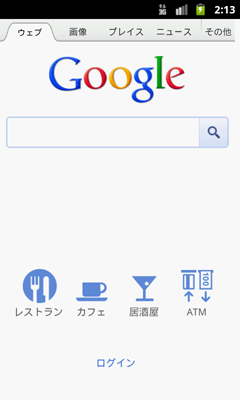
実行します。
関連記事

2012年4月24日火曜日

Hello, Views (Google Map View編)

Google Map View | Android Developers
http://developer.android.com/intl/ja/resources/tutorials/views/hello-mapview.html 事前に Android SDK マネージャーでGoogle APIsをインストールしておきましょう。
また、Google Maps APIのAPI Keyが必要になります。取得していない場合は以下を参照し、取得しておきましょう。
Android Maps API Key 取得方法 - ログろいど
Google APIsをターゲットとした仮想デバイスが作られていない場合は、AVDで作成しておきます。

Part 1: Map Activityの作成

ビルドターゲットを、Google APIs、プラットフォームを2.3.3でHelloGoogleMapsというプロジェクトを作成します。
AndroidManifest.xmlを開き、以下のように変更します。
<?xml version="1.0" encoding="utf-8"?>
<manifest xmlns:android="http://schemas.android.com/apk/res/android"
    package="jp.blogspot.logroid.helloGoogleMaps"
    android:versionCode="1"
    android:versionName="1.0" >

    <uses-sdk android:minSdkVersion="10" />
    <uses-permission android:name="android.permission.INTERNET"/>

    <application
        android:icon="@drawable/ic_launcher"
        android:label="@string/app_name" >
        <activity
            android:name=".HelloGoogleMapsActivity"
            android:label="@string/app_name"
            android:theme="@android:style/Theme.NoTitleBar">
            <intent-filter>
                <action android:name="android.intent.action.MAIN" />

                <category android:name="android.intent.category.LAUNCHER" />
            </intent-filter>
        </activity>
        <uses-library android:name="com.google.android.maps" />
    </application>
</manifest>
res/layout/main.xmlを開き、以下のように変更します。
<?xml version="1.0" encoding="utf-8"?>
<com.google.android.maps.MapView
    xmlns:android="http://schemas.android.com/apk/res/android"
    android:id="@+id/mapview"
    android:layout_width="match_parent"
    android:layout_height="match_parent"
    android:clickable="true"
    android:apiKey="Google MapsのAPIキーを入力"
/>
HelloGoogleMapsActivity.javaを開き、以下のように変更します。
package jp.blogspot.logroid.helloGoogleMaps;

import com.google.android.maps.MapActivity;
import com.google.android.maps.MapView;

import android.os.Bundle;

public class HelloGoogleMapsActivity extends MapActivity {
    /** Called when the activity is first created. */
    @Override
    public void onCreate(Bundle savedInstanceState) {
        super.onCreate(savedInstanceState);
        setContentView(R.layout.main);
        MapView mapView = (MapView) findViewById(R.id.mapview);
        mapView.setBuiltInZoomControls(true);
    }

    @Override
    protected boolean isRouteDisplayed() {
        return false;
    }
}
Google APIsをターゲットとした仮想デバイスで実行します。

Part 2: オーバーレイアイテムの追加

src/パッケージ名で右クリックをして、新規->クラスをクリックします。
名前に、HelloItemizedOverlayを入力し、スーパークラスにcom.google.android.maps.ItemizedOverlayを入力します。
スーパークラスからのコンストラクターにチェックを入れ、完了をクリックします。
HelloItemizedOverlay.javaを開き、以下のように変更します。
package jp.blogspot.logroid.helloGoogleMaps;

import java.util.ArrayList;

import android.app.AlertDialog;
import android.content.Context;
import android.graphics.drawable.Drawable;

import com.google.android.maps.ItemizedOverlay;
import com.google.android.maps.OverlayItem;

public class HelloItemizedOverlay extends ItemizedOverlay<OverlayItem> {
    private ArrayList<OverlayItem> mOverlays = new ArrayList<OverlayItem>();
    private Context mContext;

    public HelloItemizedOverlay(Drawable defaultMarker, Context context) {
     super(boundCenterBottom(defaultMarker));
        mContext = context;
    }

    public void addOverlay(OverlayItem overlay) {
        mOverlays.add(overlay);
        populate();
    }

    @Override
    protected OverlayItem createItem(int i) {
        return mOverlays.get(i);
    }

    @Override
    public int size() {
        return mOverlays.size();
    }

    @Override
    protected boolean onTap(int index) {
        OverlayItem item = mOverlays.get(index);
        AlertDialog.Builder dialog = new AlertDialog.Builder(mContext);
        dialog.setTitle(item.getTitle());
        dialog.setMessage(item.getSnippet());
        dialog.show();
        return true;
    }
}
HelloGoogleMapsActivity.javaを開き、以下のように変更します。
package jp.blogspot.logroid.helloGoogleMaps;

import java.util.List;

import com.google.android.maps.GeoPoint;
import com.google.android.maps.MapActivity;
import com.google.android.maps.MapView;
import com.google.android.maps.Overlay;
import com.google.android.maps.OverlayItem;

import android.graphics.drawable.Drawable;
import android.os.Bundle;

public class HelloGoogleMapsActivity extends MapActivity {
    /** Called when the activity is first created. */
    @Override
    public void onCreate(Bundle savedInstanceState) {
        super.onCreate(savedInstanceState);
        setContentView(R.layout.main);
        MapView mapView = (MapView) findViewById(R.id.mapview);
        mapView.setBuiltInZoomControls(true);

        List<Overlay> mapOverlays = mapView.getOverlays();
        Drawable drawable = this.getResources().getDrawable(R.drawable.androidmarker);
        HelloItemizedOverlay itemizedoverlay = new HelloItemizedOverlay(drawable, this);

        GeoPoint point = new GeoPoint(19240000,-99120000);
        OverlayItem overlayitem = new OverlayItem(point, "Hola, Mundo!", "I'm in Mexico City!");

        itemizedoverlay.addOverlay(overlayitem);
        mapOverlays.add(itemizedoverlay);
    }

    @Override
    protected boolean isRouteDisplayed() {
        return false;
    }
}
Google APIsをターゲットとした仮想デバイスで実行します。
HelloGoogleMapsActivity.javaを開き、以下のように変更します。
package jp.blogspot.logroid.helloGoogleMaps;

import java.util.List;

import com.google.android.maps.GeoPoint;
import com.google.android.maps.MapActivity;
import com.google.android.maps.MapView;
import com.google.android.maps.Overlay;
import com.google.android.maps.OverlayItem;

import android.graphics.drawable.Drawable;
import android.os.Bundle;

public class HelloGoogleMapsActivity extends MapActivity {
    /** Called when the activity is first created. */
    @Override
    public void onCreate(Bundle savedInstanceState) {
        super.onCreate(savedInstanceState);
        setContentView(R.layout.main);
        MapView mapView = (MapView) findViewById(R.id.mapview);
        mapView.setBuiltInZoomControls(true);

        List<Overlay> mapOverlays = mapView.getOverlays();
        Drawable drawable = this.getResources().getDrawable(R.drawable.androidmarker);
        HelloItemizedOverlay itemizedoverlay = new HelloItemizedOverlay(drawable, this);

        GeoPoint point = new GeoPoint(19240000,-99120000);
        OverlayItem overlayitem = new OverlayItem(point, "Hola, Mundo!", "I'm in Mexico City!");

        GeoPoint point2 = new GeoPoint(35410000, 139460000);
        OverlayItem overlayitem2 = new OverlayItem(point2, "Sekai, konichiwa!", "I'm in Japan!");

        itemizedoverlay.addOverlay(overlayitem);
        itemizedoverlay.addOverlay(overlayitem2);
        mapOverlays.add(itemizedoverlay);
    }

    @Override
    protected boolean isRouteDisplayed() {
        return false;
    }
}
Google APIsをターゲットとした仮想デバイスで実行します。
今回出てきたキーワードについて解説。
MapView
マップを表示するビュー
setBuiltInZoomControls
ズームの許可
GeoPoint
経度、緯度のクラス
OverlayItem
地図上にアイテムを表示する
引数として、アイテムがタップされた際のバルーンに表示するタイトル、メッセージを受ける
isRouteDisplayed
MapActivityを継承した場合必須となるメソッド
ルート表示を行うかというフラグを返すために実装する
関連記事

2012年4月23日月曜日

Hello, Views (Gallery編)

Gallery | Android Developers
http://developer.android.com/intl/ja/resources/tutorials/views/hello-gallery.html 水平方向にスクロールしてビューを表示するレイアウトのようです。 今回は、写真のギャラリーを作成します。 HelloGalleryというプロジェクトを作成します。 チュートリアルのページから画像をダウンロードして、res/drawable/配下に保存します。 res/layout/main.xmlを開き、以下のように変更します。
<?xml version="1.0" encoding="utf-8"?>
<Gallery xmlns:android="http://schemas.android.com/apk/res/android"
    android:id="@+id/gallery"
    android:layout_width="match_parent"
    android:layout_height="wrap_content"
/>
HelloGalleryActivity.javaを開き、以下のように変更します。
package jp.blogspot.logroid.helloGallery;

import android.app.Activity;
import android.os.Bundle;
import android.view.View;
import android.widget.AdapterView;
import android.widget.AdapterView.OnItemClickListener;
import android.widget.Gallery;
import android.widget.Toast;

public class HelloGalleryActivity extends Activity {
    /** Called when the activity is first created. */
    @Override
    public void onCreate(Bundle savedInstanceState) {
        super.onCreate(savedInstanceState);
        setContentView(R.layout.main);

        Gallery gallery = (Gallery) findViewById(R.id.gallery);
        gallery.setAdapter(new ImageAdapter(this));

        gallery.setOnItemClickListener(new OnItemClickListener() {
            public void onItemClick(@SuppressWarnings("rawtypes") AdapterView parent, View v, int position, long id) {
                Toast.makeText(HelloGalleryActivity.this, "" + position, Toast.LENGTH_SHORT).show();
            }
        });
    }
}
res/values/にattrs.xmlを作成し、以下のように変更します。
<?xml version="1.0" encoding="utf-8"?>
<resources>
    <declare-styleable name="default_gallery">
        <attr name="android:galleryItemBackground" />
    </declare-styleable>
</resources>
HelloGalleryActivity.javaを開き、以下のように変更します。
package jp.blogspot.logroid.helloGallery;

import android.app.Activity;
import android.content.Context;
import android.content.res.TypedArray;
import android.os.Bundle;
import android.view.View;
import android.view.ViewGroup;
import android.widget.AdapterView;
import android.widget.AdapterView.OnItemClickListener;
import android.widget.BaseAdapter;
import android.widget.Gallery;
import android.widget.ImageView;
import android.widget.Toast;

public class HelloGalleryActivity extends Activity {
    /** Called when the activity is first created. */
    @Override
    public void onCreate(Bundle savedInstanceState) {
        super.onCreate(savedInstanceState);
        setContentView(R.layout.main);

        Gallery gallery = (Gallery) findViewById(R.id.gallery);
        gallery.setAdapter(new ImageAdapter(this));

        gallery.setOnItemClickListener(new OnItemClickListener() {
            public void onItemClick(@SuppressWarnings("rawtypes") AdapterView parent, View v, int position, long id) {
                Toast.makeText(HelloGalleryActivity.this, "" + position, Toast.LENGTH_SHORT).show();
            }
        });
    }

    public class ImageAdapter extends BaseAdapter {
        int mGalleryItemBackground;
        private Context mContext;

        private Integer[] mImageIds = {
                R.drawable.sample_1,
                R.drawable.sample_2,
                R.drawable.sample_3,
                R.drawable.sample_4,
                R.drawable.sample_5,
                R.drawable.sample_6,
                R.drawable.sample_7
        };

        public ImageAdapter(Context c) {
            mContext = c;
            TypedArray a = obtainStyledAttributes(R.styleable.default_gallery);
            mGalleryItemBackground = a.getResourceId(
                    R.styleable.default_gallery_android_galleryItemBackground, 0);
            a.recycle();
        }

        public int getCount() {
            return mImageIds.length;
        }

        public Object getItem(int position) {
            return position;
        }

        public long getItemId(int position) {
            return position;
        }

        public View getView(int position, View convertView, ViewGroup parent) {
            ImageView i = new ImageView(mContext);

            i.setImageResource(mImageIds[position]);
            i.setLayoutParams(new Gallery.LayoutParams(150, 100));
            i.setScaleType(ImageView.ScaleType.FIT_XY);
            i.setBackgroundResource(mGalleryItemBackground);

            return i;
        }
    }
}
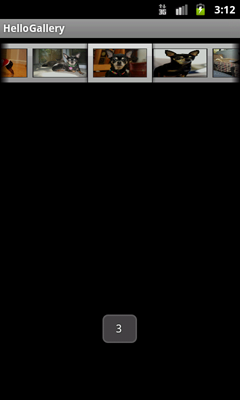
実行します。
今回出てきたキーワードについて解説。
setImageResource
表示する画像のリソースIDを指定
リソースIDは、R.drawable.hogeで取得できる
setBackgroundResource
背景として表示するリソースIDを指定
obtainStyledAttributes
レイアウトスタイルを取得
getResourceId
リソースIDの取得
recycle
TypedArrayの破棄
関連記事

2012年4月22日日曜日

Hello, Views (AutoComplete編)

Auto Complete | Android Developers
http://developer.android.com/intl/ja/resources/tutorials/views/hello-autocomplete.html テキストビューでのオートコンプリートのチュートリアルです。 HelloAutoCompleteというプロジェクトを作成します。 res/layout/にlist_item.xmlを作成し、以下のように変更します。
<?xml version="1.0" encoding="utf-8"?>
<TextView xmlns:android="http://schemas.android.com/apk/res/android"
    android:layout_width="match_parent"
    android:layout_height="match_parent"
    android:padding="10dp"
    android:textSize="16sp"
    android:textColor="#000">

</TextView>
res/layout/main.xmlを開き、以下のように変更します。
<?xml version="1.0" encoding="utf-8"?>
<LinearLayout xmlns:android="http://schemas.android.com/apk/res/android"
    android:orientation="horizontal"
    android:layout_width="match_parent"
    android:layout_height="wrap_content"
    android:padding="5dp">
    <TextView
        android:layout_width="wrap_content"
        android:layout_height="wrap_content"
        android:text="@string/country" />
    <AutoCompleteTextView android:id="@+id/autocomplete_country"
        android:layout_width="match_parent"
        android:layout_height="wrap_content"
        android:layout_marginLeft="5dp"/>

</LinearLayout>
res/values/strings.xmlを開き、以下のように変更します。
<?xml version="1.0" encoding="utf-8"?>
<resources>

    <string name="hello">Hello World, HelloAutoCompleteActivity!</string>
    <string name="app_name">HelloAutoComplete</string>
    <string name="country">Country</string>

</resources>
res/values/にarray.xmlを作成し、以下のように変更します。
<?xml version="1.0" encoding="utf-8"?>
<resources>
    <string-array name="countries_array">
        <item>Afghanistan</item>
        <item>Albania</item>
        <item>Algeria</item>
        <item>American Samoa</item>
        <item>Andorra</item>
        <item>Angola</item>
        <item>Anguilla</item>
        <item>Antarctica</item>
        <item>Antigua and Barbuda</item>
        <item>Argentina</item>
        <item>Armenia</item>
        <item>Aruba</item>
        <item>Australia</item>
        <item>Austria</item>
        <item>Azerbaijan</item>
        <item>Bahrain</item>
        <item>Bangladesh</item>
        <item>Barbados</item>
        <item>Belarus</item>
        <item>Belgium</item>
        <item>Belize</item>
        <item>Benin</item>
        <item>Bermuda</item>
        <item>Bhutan</item>
        <item>Bolivia</item>
        <item>Bosnia and Herzegovina</item>
        <item>Botswana</item>
        <item>Bouvet Island</item>
        <item>Brazil</item>
        <item>British Indian Ocean Territory</item>
        <item>British Virgin Islands</item>
        <item>Brunei</item>
        <item>Bulgaria</item>
        <item>Burkina Faso</item>
        <item>Burundi</item>
        <item>Cote d\'Ivoire</item>
        <item>Cambodia</item>
        <item>Cameroon</item>
        <item>Canada</item>
        <item>Cape Verde</item>
        <item>Cayman Islands</item>
        <item>Central African Republic</item>
        <item>Chad</item>
        <item>Chile</item>
        <item>China</item>
        <item>Christmas Island</item>
        <item>Cocos (Keeling) Islands</item>
        <item>Colombia</item>
        <item>Comoros</item>
        <item>Congo</item>
        <item>Cook Islands</item>
        <item>Costa Rica</item>
        <item>Croatia</item>
        <item>Cuba</item>
        <item>Cyprus</item>
        <item>Czech Republic</item>
        <item>Democratic Republic of the Congo</item>
        <item>Denmark</item>
        <item>Djibouti</item>
        <item>Dominica</item>
        <item>Dominican Republic</item>
        <item>East Timor</item>
        <item>Ecuador</item>
        <item>Egypt</item>
        <item>El Salvador</item>
        <item>Equatorial Guinea</item>
        <item>Eritrea</item>
        <item>Estonia</item>
        <item>Ethiopia</item>
        <item>Faeroe Islands</item>
        <item>Falkland Islands</item>
        <item>Fiji</item>
        <item>Finland</item>
        <item>Former Yugoslav Republic of Macedonia</item>
        <item>France</item>
        <item>French Guiana</item>
        <item>French Polynesia</item>
        <item>French Southern Territories</item>
        <item>Gabon</item>
        <item>Georgia</item>
        <item>Germany</item>
        <item>Ghana</item>
        <item>Gibraltar</item>
        <item>Greece</item>
        <item>Greenland</item>
        <item>Grenada</item>
        <item>Guadeloupe</item>
        <item>Guam</item>
        <item>Guatemala</item>
        <item>Guinea</item>
        <item>Guinea-Bissau</item>
        <item>Guyana</item>
        <item>Haiti</item>
        <item>Heard Island and McDonald Islands</item>
        <item>Honduras</item>
        <item>Hong Kong</item>
        <item>Hungary</item>
        <item>Iceland</item>
        <item>India</item>
        <item>Indonesia</item>
        <item>Iran</item>
        <item>Iraq</item>
        <item>Ireland</item>
        <item>Israel</item>
        <item>Italy</item>
        <item>Jamaica</item>
        <item>Japan</item>
        <item>Jordan</item>
        <item>Kazakhstan</item>
        <item>Kenya</item>
        <item>Kiribati</item>
        <item>Kuwait</item>
        <item>Kyrgyzstan</item>
        <item>Laos</item>
        <item>Latvia</item>
        <item>Lebanon</item>
        <item>Lesotho</item>
        <item>Liberia</item>
        <item>Libya</item>
        <item>Liechtenstein</item>
        <item>Lithuania</item>
        <item>Luxembourg</item>
        <item>Macau</item>
        <item>Madagascar</item>
        <item>Malawi</item>
        <item>Malaysia</item>
        <item>Maldives</item>
        <item>Mali</item>
        <item>Malta</item>
        <item>Marshall Islands</item>
        <item>Martinique</item>
        <item>Mauritania</item>
        <item>Mauritius</item>
        <item>Mayotte</item>
        <item>Mexico</item>
        <item>Micronesia</item>
        <item>Moldova</item>
        <item>Monaco</item>
        <item>Mongolia</item>
        <item>Montserrat</item>
        <item>Morocco</item>
        <item>Mozambique</item>
        <item>Myanmar</item>
        <item>Namibia</item>
        <item>Nauru</item>
        <item>Nepal</item>
        <item>Netherlands</item>
        <item>Netherlands Antilles</item>
        <item>New Caledonia</item>
        <item>New Zealand</item>
        <item>Nicaragua</item>
        <item>Niger</item>
        <item>Nigeria</item>
        <item>Niue</item>
        <item>Norfolk Island</item>
        <item>North Korea</item>
        <item>Northern Marianas</item>
        <item>Norway</item>
        <item>Oman</item>
        <item>Pakistan</item>
        <item>Palau</item>
        <item>Panama</item>
        <item>Papua New Guinea</item>
        <item>Paraguay</item>
        <item>Peru</item>
        <item>Philippines</item>
        <item>Pitcairn Islands</item>
        <item>Poland</item>
        <item>Portugal</item>
        <item>Puerto Rico</item>
        <item>Qatar</item>
        <item>Reunion</item>
        <item>Romania</item>
        <item>Russia</item>
        <item>Rwanda</item>
        <item>Sqo Tome and Principe</item>
        <item>Saint Helena</item>
        <item>Saint Kitts and Nevis</item>
        <item>Saint Lucia</item>
        <item>Saint Pierre and Miquelon</item>
        <item>Saint Vincent and the Grenadines</item>
        <item>Samoa</item>
        <item>San Marino</item>
        <item>Saudi Arabia</item>
        <item>Senegal</item>
        <item>Seychelles</item>
        <item>Sierra Leone</item>
        <item>Singapore</item>
        <item>Slovakia</item>
        <item>Slovenia</item>
        <item>Solomon Islands</item>
        <item>Somalia</item>
        <item>South Africa</item>
        <item>South Georgia and the South Sandwich Islands</item>
        <item>South Korea</item>
        <item>Spain</item>
        <item>Sri Lanka</item>
        <item>Sudan</item>
        <item>Suriname</item>
        <item>Svalbard and Jan Mayen</item>
        <item>Swaziland</item>
        <item>Sweden</item>
        <item>Switzerland</item>
        <item>Syria</item>
        <item>Taiwan</item>
        <item>Tajikistan</item>
        <item>Tanzania</item>
        <item>Thailand</item>
        <item>The Bahamas</item>
        <item>The Gambia</item>
        <item>Togo</item>
        <item>Tokelau</item>
        <item>Tonga</item>
        <item>Trinidad and Tobago</item>
        <item>Tunisia</item>
        <item>Turkey</item>
        <item>Turkmenistan</item>
        <item>Turks and Caicos Islands</item>
        <item>Tuvalu</item>
        <item>Virgin Islands</item>
        <item>Uganda</item>
        <item>Ukraine</item>
        <item>United Arab Emirates</item>
        <item>United Kingdom</item>
        <item>United States</item>
        <item>United States Minor Outlying Islands</item>
        <item>Uruguay</item>
        <item>Uzbekistan</item>
        <item>Vanuatu</item>
        <item>Vatican City</item>
        <item>Venezuela</item>
        <item>Vietnam</item>
        <item>Wallis and Futuna</item>
        <item>Western Sahara</item>
        <item>Yemen</item>
        <item>Yugoslavia</item>
        <item>Zambia</item>
        <item>Zimbabwe</item>
    </string-array>
</resources>
HelloAutoCompleteActivity.javaを開き、以下のように変更します。
package jp.blogspot.logroid.helloAutoComplete;

import android.app.Activity;
import android.os.Bundle;
import android.widget.ArrayAdapter;
import android.widget.AutoCompleteTextView;

public class HelloAutoCompleteActivity extends Activity {
    /** Called when the activity is first created. */
    @Override
    protected void onCreate(Bundle savedInstanceState) {
        super.onCreate(savedInstanceState);
        setContentView(R.layout.main);

        AutoCompleteTextView textView = (AutoCompleteTextView) findViewById(R.id.autocomplete_country);
        String[] countries = getResources().getStringArray(R.array.countries_array);
        ArrayAdapter<String> adapter = new ArrayAdapter<String>(this, R.layout.list_item, countries);
        textView.setAdapter(adapter);
    }
}
実行します。
今回出てきたキーワードについて解説。
AutoCompleteTextView
オートコンプリートを行うテキストビュー
setAdapterでArrayAdapterを指定すると、オートコンプリートを実装できる
関連記事